
For Windows 11
One folder window,
always.
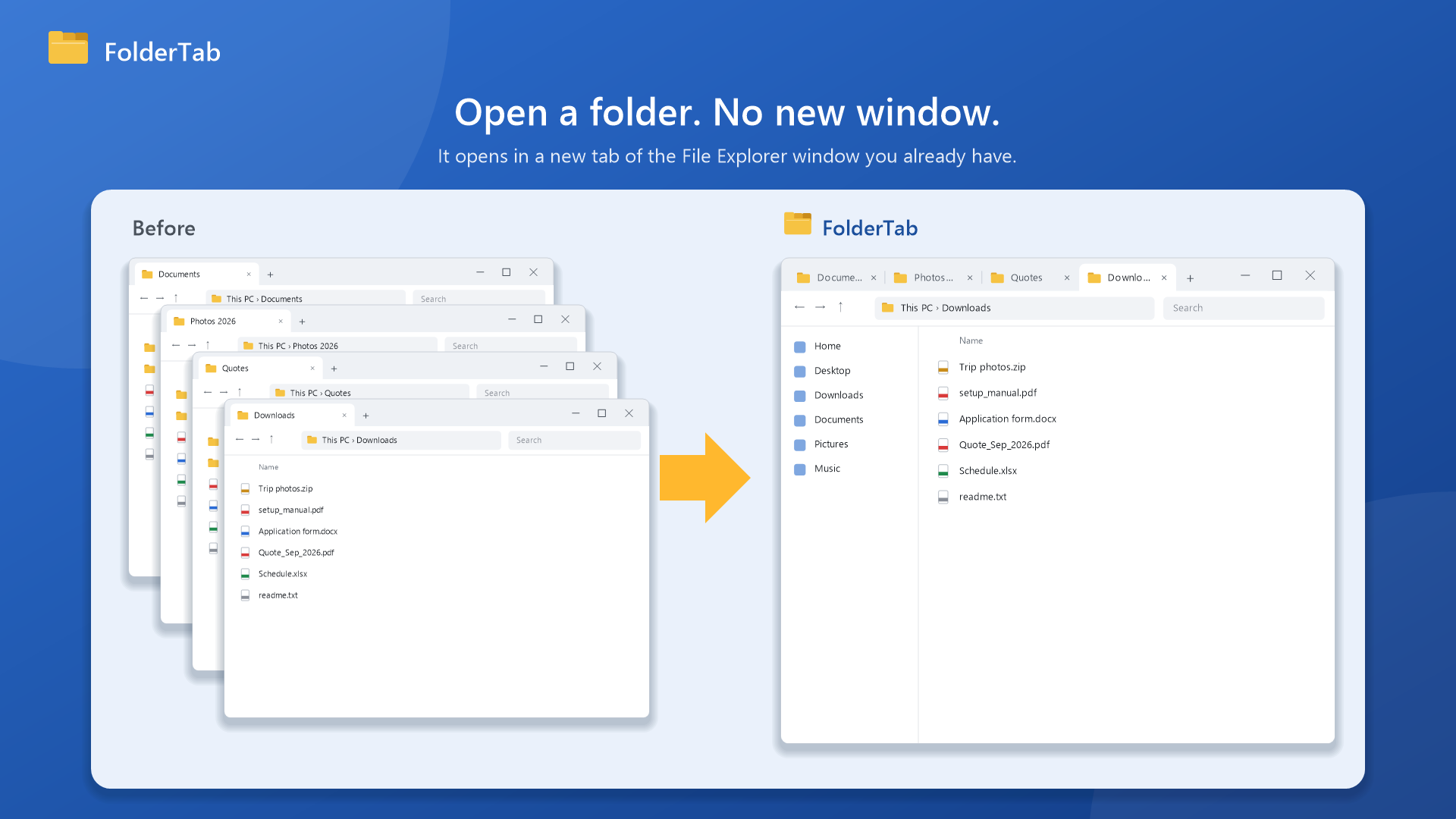
When you open a folder, it appears as a new tab in the File Explorer window you already have, not in another window. Install it and you are done. There are no settings.
Problems
Does every folder you open
add another window?
The folder of a download, a folder on your desktop, a folder opened from another app: each one opens in a window of its own.
-
A desktop full of windows
File Explorer windows stack up on top of each other and cover the work you were doing.
-
Hunting for the right window
You click through the grouped windows on the taskbar one by one, looking for the folder you just had open.
-
Closing them one by one
When you finish, every extra window has to be closed by hand, and it happens again the next day.
Solution
Every folder you open
becomes a tab.
You do not need to drag tabs around or rearrange windows. FolderTab puts each folder into a tab of the File Explorer window you already use.
-
Point 01
No new windows
Wherever you open a folder from, it opens in a new tab of your existing File Explorer window. You keep one window, and only the number of tabs grows.
- A tidy desktop and taskbar
- Folders sit side by side as tabs, one click apart
- When you are done, close one window
-
Point 02
"Show in folder" opens in a tab too
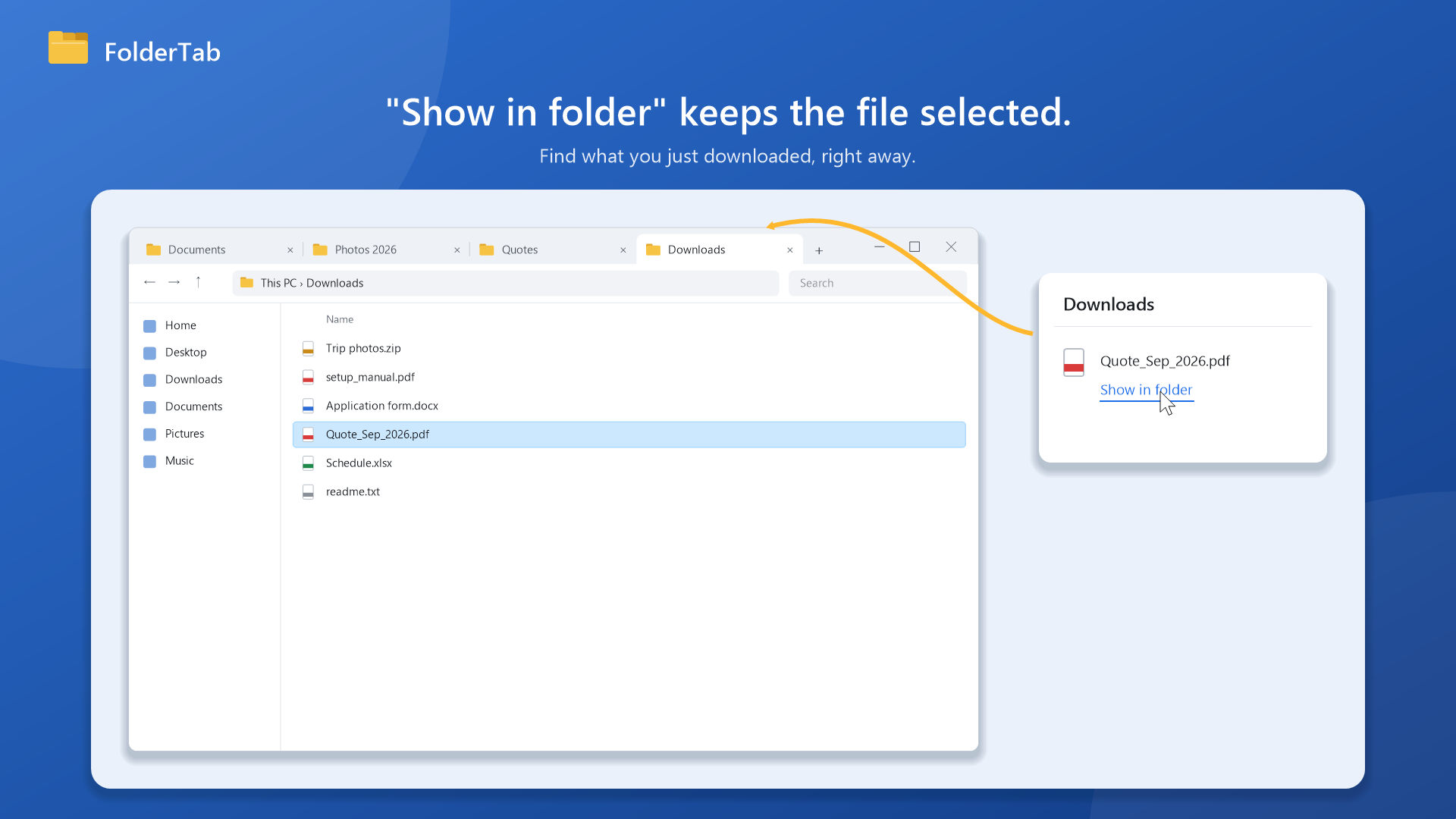
When a folder is opened with a file selected, such as "Show in folder" for a download, it opens in a tab with that file still selected.
- The file stays selected
- Folders opened from other apps become tabs too
- No flicker when the folder moves into a tab
-
Point 03
Install it. No settings
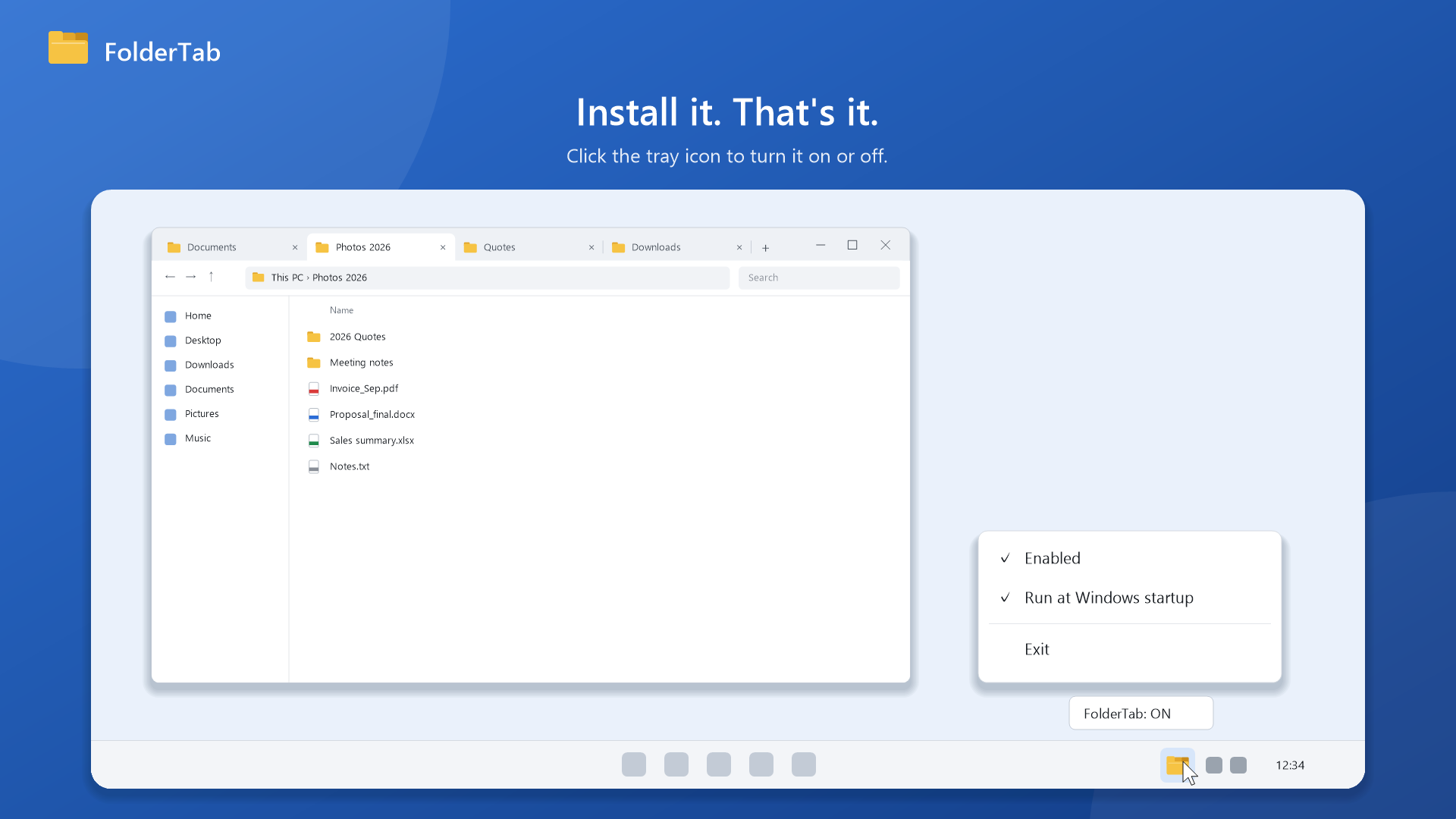
There is nothing to configure. FolderTab starts when you sign in and runs in the notification area.
- Click the tray icon to turn it on or off
- Turn off auto-start from the tray menu
- Hold Shift or Ctrl to open a separate window
How it works
Getting started
After installing, open folders the way you always do.
-
01
Install from Microsoft Store
Launch it once and its icon appears in the notification area. After that, it starts automatically when you sign in.
-
02
Open folders as usual
Whether you open a folder from the desktop, from "Show in folder" for a download, or from another app, it opens as a new tab in your current window.
-
03
Turn it on or off from the tray
Click the tray icon to turn FolderTab on or off. Right-click it to change auto-start or to exit.
Pricing
One-time purchase
FolderTab is not a subscription. You pay once, with no additional charges.
-
FolderTab
One-time purchase · no in-app purchases
$1.99
- Opens new folders as tabs automatically
- "Show in folder" keeps the file selected
- Starts automatically when you sign in
- Turn it on or off with one click in the tray
- Hold Shift or Ctrl for a separate window when you need one
Price shown is for the United States. See Microsoft Store for pricing in your region.
* Requires Windows 11 version 22H2 or later (FolderTab uses File Explorer tabs).
FAQ
Frequently Asked Questions
Which versions of Windows are supported?
Windows 11 version 22H2 or later. FolderTab relies on File Explorer tabs, so it does not work on Windows 10.
Do I need to configure anything?
No. Once installed, it opens folders as tabs automatically and starts by itself when you sign in.
What if I want a separate window just this once?
Hold Shift or Ctrl while opening the folder, and it opens in its own window. To pause FolderTab for longer, click the tray icon to turn it off.
Can I turn off auto-start?
Yes. Right-click the tray icon and turn it off in the menu. You can also turn it off in Windows Settings.
Does FolderTab send any information about my files?
No. FolderTab has no features that connect to the internet, and it never sends folder locations or file names anywhere. It does not modify File Explorer either. See the privacy policy for details.
Get FolderTab
Open a folder.
No new window.
Install FolderTab, and the next folder you open becomes a tab.
Microsoft and Windows are trademarks of Microsoft Corporation. FolderTab is an independent app and is not affiliated with Microsoft.