For Windows 10 / 11
Everything you copy,
kept.
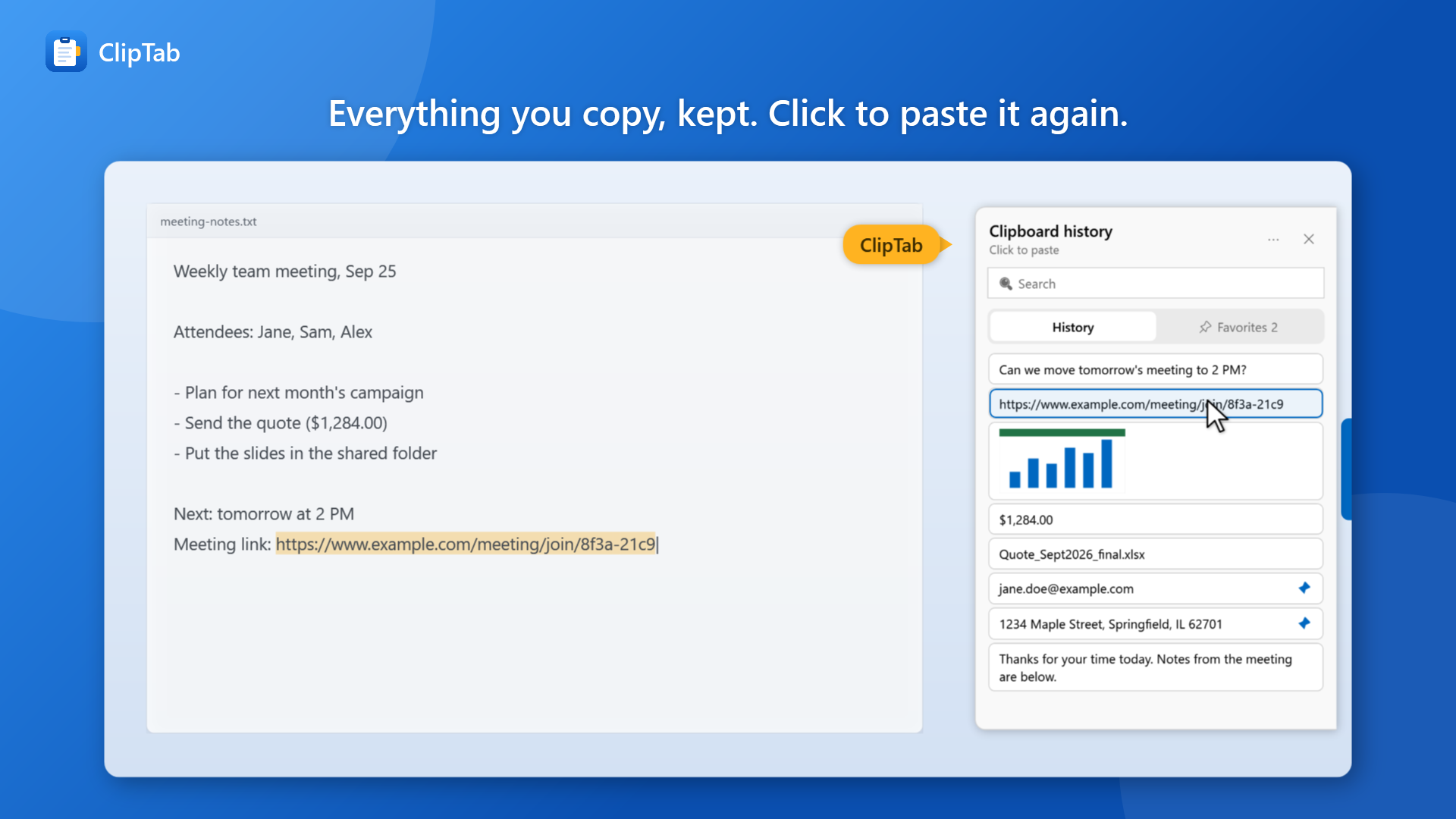
ClipTab saves the text and images you copy. Move your mouse to the right edge of the screen and click an item to paste it again. Your history survives restarts and holds up to 1,000 items. There are no shortcuts to learn.
Problems
Ever lost something
you just copied?
The clipboard holds only the last thing you copied. Copy something else before you paste, and the previous item is gone.
-
Copied over by accident
You copy something new before pasting, then have to go back and find the text you had a moment ago.
-
Typing the same address again
Every form means typing your address, email, or the same greeting from scratch.
-
History gone after a restart
The built-in Windows clipboard history (Win+V) keeps 25 items and clears everything except pinned items when you restart.
Solution
Copy as usual.
Paste from the edge of the screen.
There is nothing new to learn. The text and images you copy are saved automatically, and you can paste them with a click from the edge of your screen.
-
Point 01
No shortcuts, just the mouse
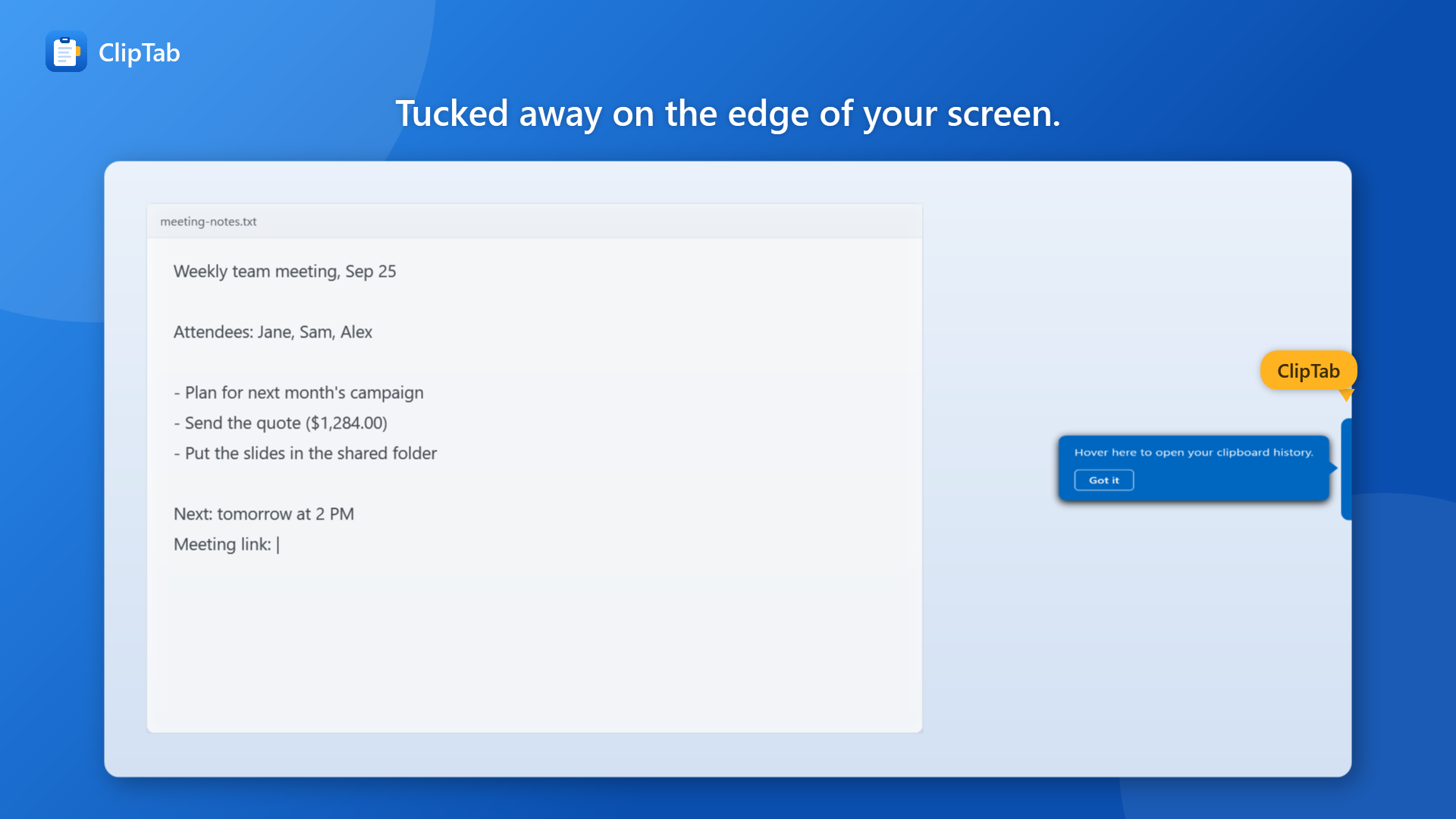
Hover over the blue tab on the right edge of the screen and your history appears. Click an item to paste it into the app you were using.
- Open it from a tab on the screen edge
- Click to paste straight into the app you were using
- Text is pasted without formatting, so layouts stay intact
-
Point 02
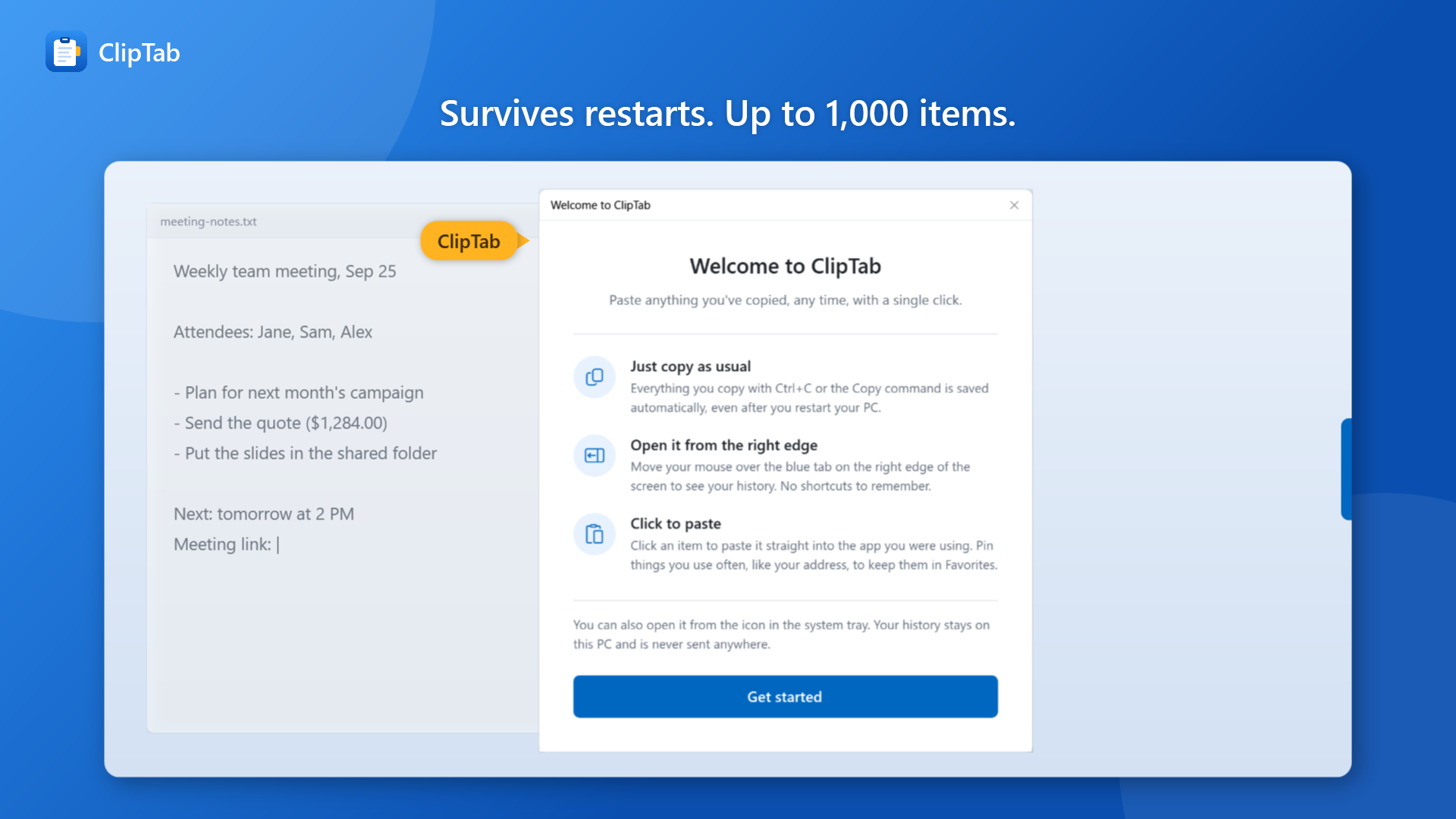
Survives restarts. Up to 1,000 items
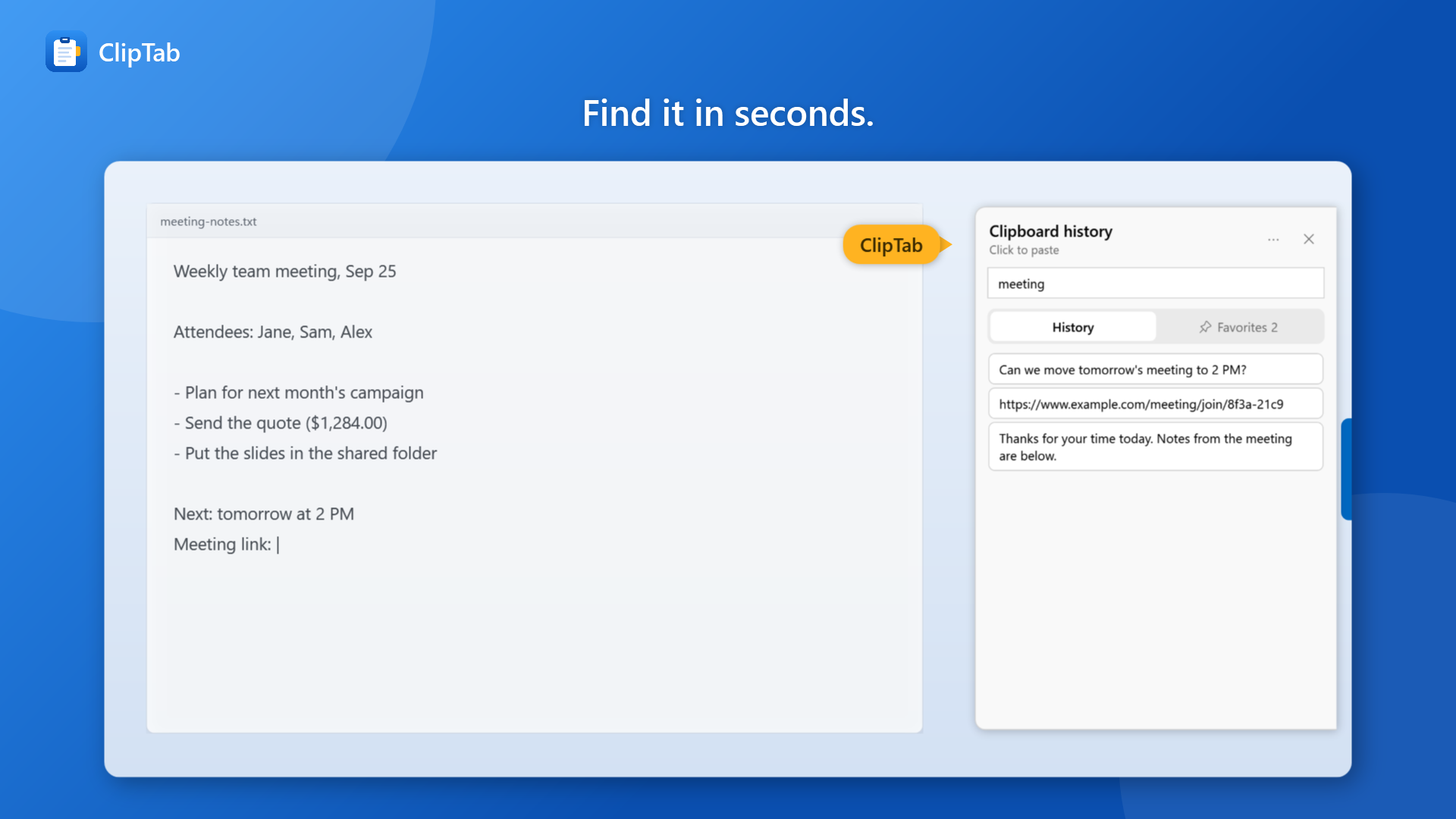
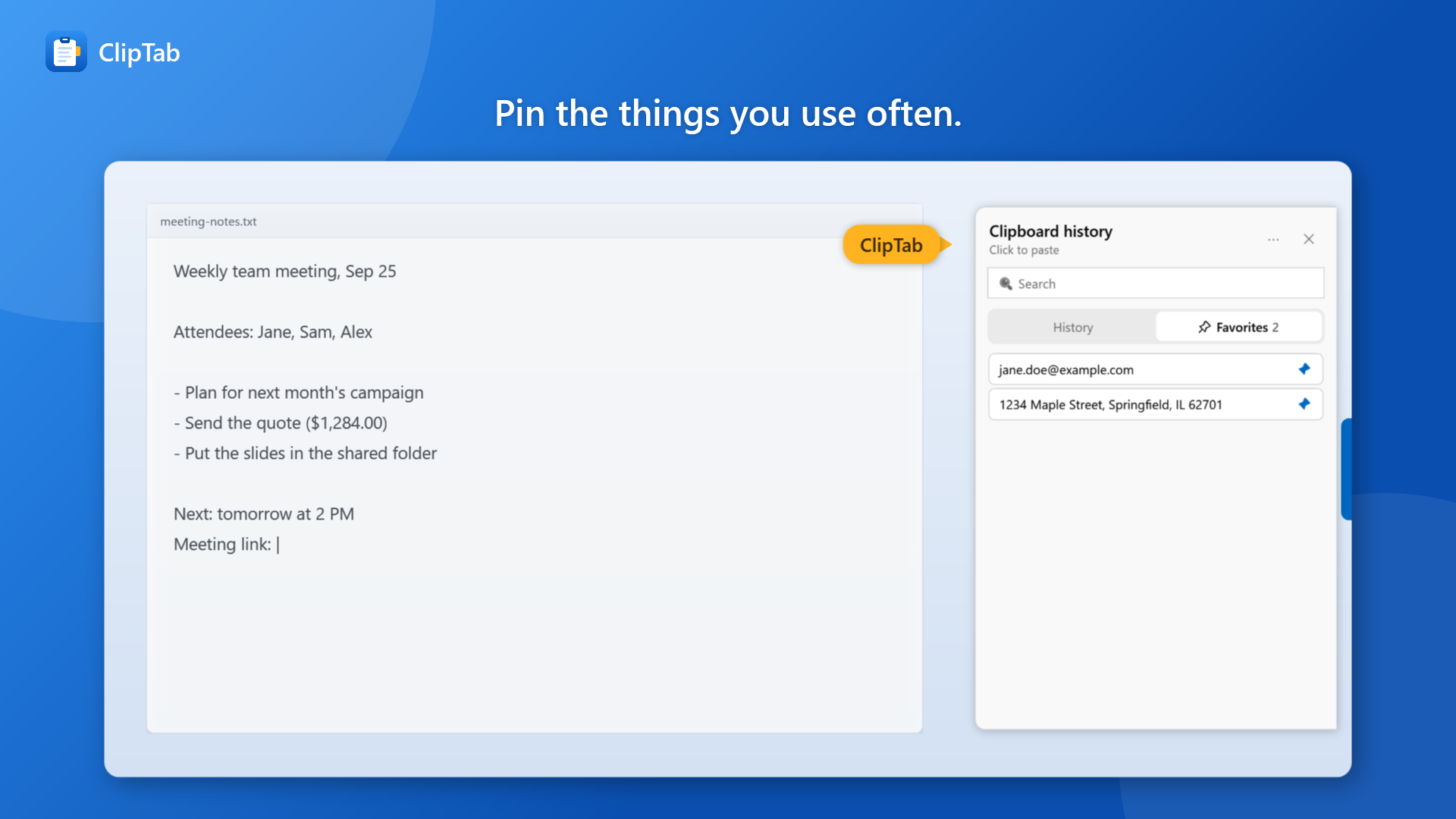
Keeps text and images (such as screenshots), even after you restart your PC. Pin what you use often and search by keyword.
- Kept across restarts, up to 1,000 items
- Pin addresses and phrases to Favorites
- Search your history by keyword
-
Point 03
Stays on your PC
Your history is stored only on this PC and is never sent anywhere. No usage tracking (telemetry) and no ads.
- No uploads, no telemetry, no ads
- Skips copies from supported password managers
- Delete items one at a time or all at once
How it works
Three steps
Nothing to memorize.
-
01
Copy as usual
Press Ctrl+C or right-click and choose Copy, whichever you normally use. Text and images are saved automatically.
-
02
Move your mouse to the right edge
Hover over the blue tab on the right edge and your clipboard history appears. You can search it too.
-
03
Click to paste
Click the item you want and it is pasted straight into the app you were using.
Pricing
One-time purchase
ClipTab is not a subscription. You pay once, with no additional charges and no ads.
-
ClipTab
One-time purchase · no in-app purchases
$1.99
- Keeps the text and images you copy (up to 1,000 items)
- Survives restarts
- Click to paste from a tab on the screen edge
- Favorites (pinning) and keyword search
- Stays on your PC. No uploads, no ads
Price shown is for the United States. See Microsoft Store for pricing in your region.
* Requires Windows 10 (version 1809 or later) or Windows 11, 64-bit.
FAQ
Frequently Asked Questions
How is it different from the built-in Windows clipboard history (Win+V)?
The main difference is that ClipTab keeps your history across restarts. The built-in history keeps up to 25 items and clears everything except pinned items when you restart. ClipTab keeps up to 1,000 items and doesn't need a shortcut to open.
What does it keep?
Text and images (such as screenshots) that you copy. Copied files are not recorded, and search works on text only.
Is it safe to copy passwords?
ClipTab skips copies from password managers and other apps that mark them as private. Anything copied another way is recorded, and you can delete it one item at a time or all at once.
Is anything I copy sent anywhere?
No. Your history is stored only on your PC and is never sent anywhere. There is no usage tracking (telemetry) and there are no ads.
Won't the tab on the screen edge get in the way?
It is designed to stay out of the way. The tab is small, sits on the right edge, and hides automatically while a video or game is full screen.
Which versions of Windows are supported?
Windows 10 (version 1809 or later) and Windows 11, 64-bit. ClipTab starts with Windows, and you can turn this off.
Get ClipTab
Stop hunting for
"the thing I just copied."
Copy as usual. When you need something again, click it from the edge of your screen.
Microsoft and Windows are trademarks of Microsoft Corporation. ClipTab is an independent app and is not affiliated with Microsoft.