
Face blur for Windows
AI hides the faces in your videos
Open a video and AI finds the faces, then follows them as people move, applying a blur, mosaic, or black box. You never have to select a face by hand.
Everything runs on your PC, and your video is never uploaded.
Export the first minute free, with no watermark
Problems
Have a video you can't share
because of the faces in it?
School events, staff training, property tours, public announcements. When other people appear in the footage, you often can't share or publish it until their faces are hidden.
-
Tracking faces in an editor is slow
Moving a mosaic to follow each face can take hours, even for a few minutes of footage, and every time someone moves you have to adjust it again.
-
Too many people in frame
Events and street scenes show many faces at once, coming and going. Selecting them one at a time isn't practical.
-
You'd rather not upload it
Online face-blur services need the original video uploaded. For footage you want to keep private, that is the step you want to avoid.
Solution
AI finds and follows
the faces for you
No selecting faces and no adjusting positions. Choose an effect and a strength, then export.
-
Point 01
Finds faces and follows them
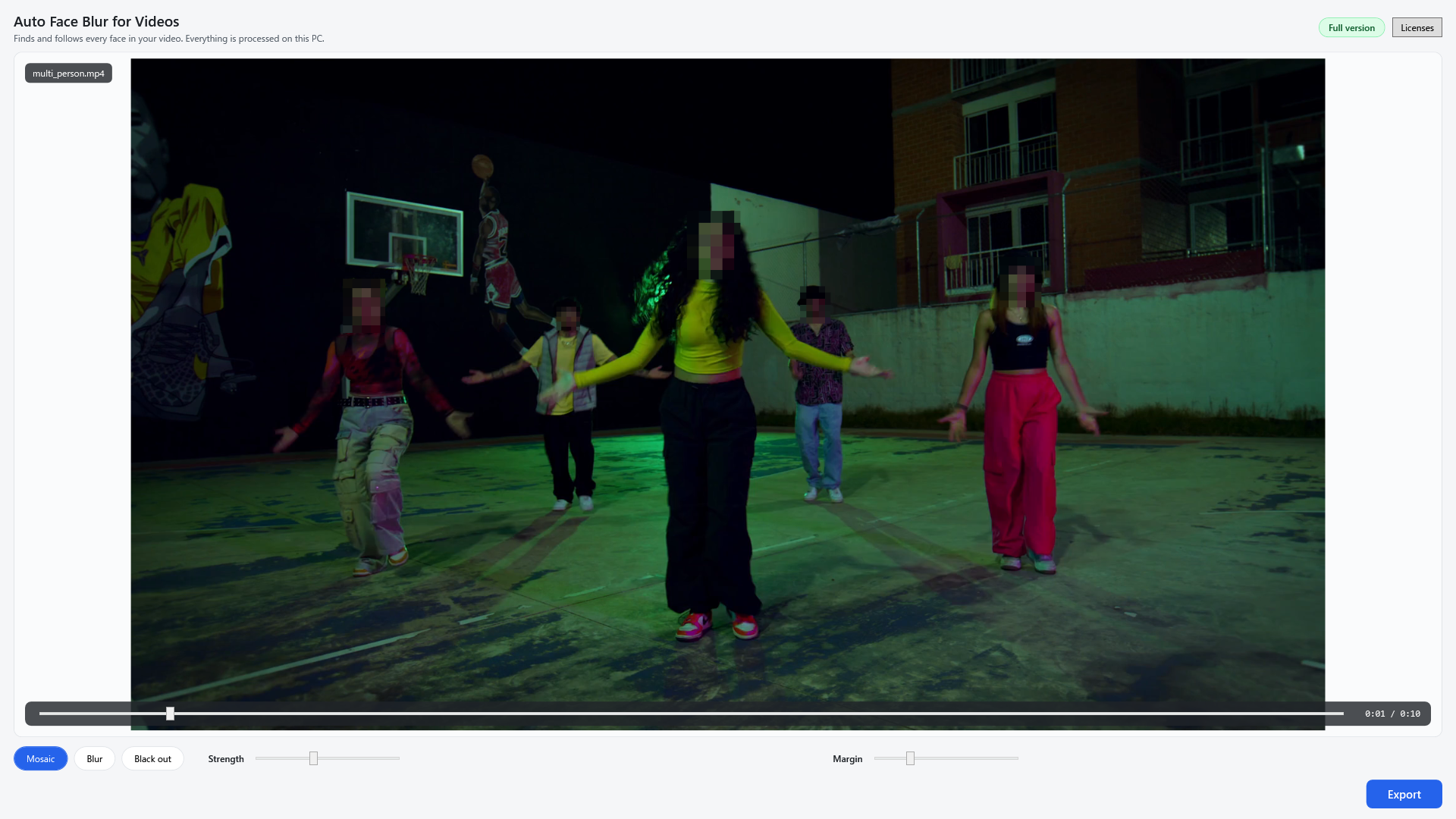
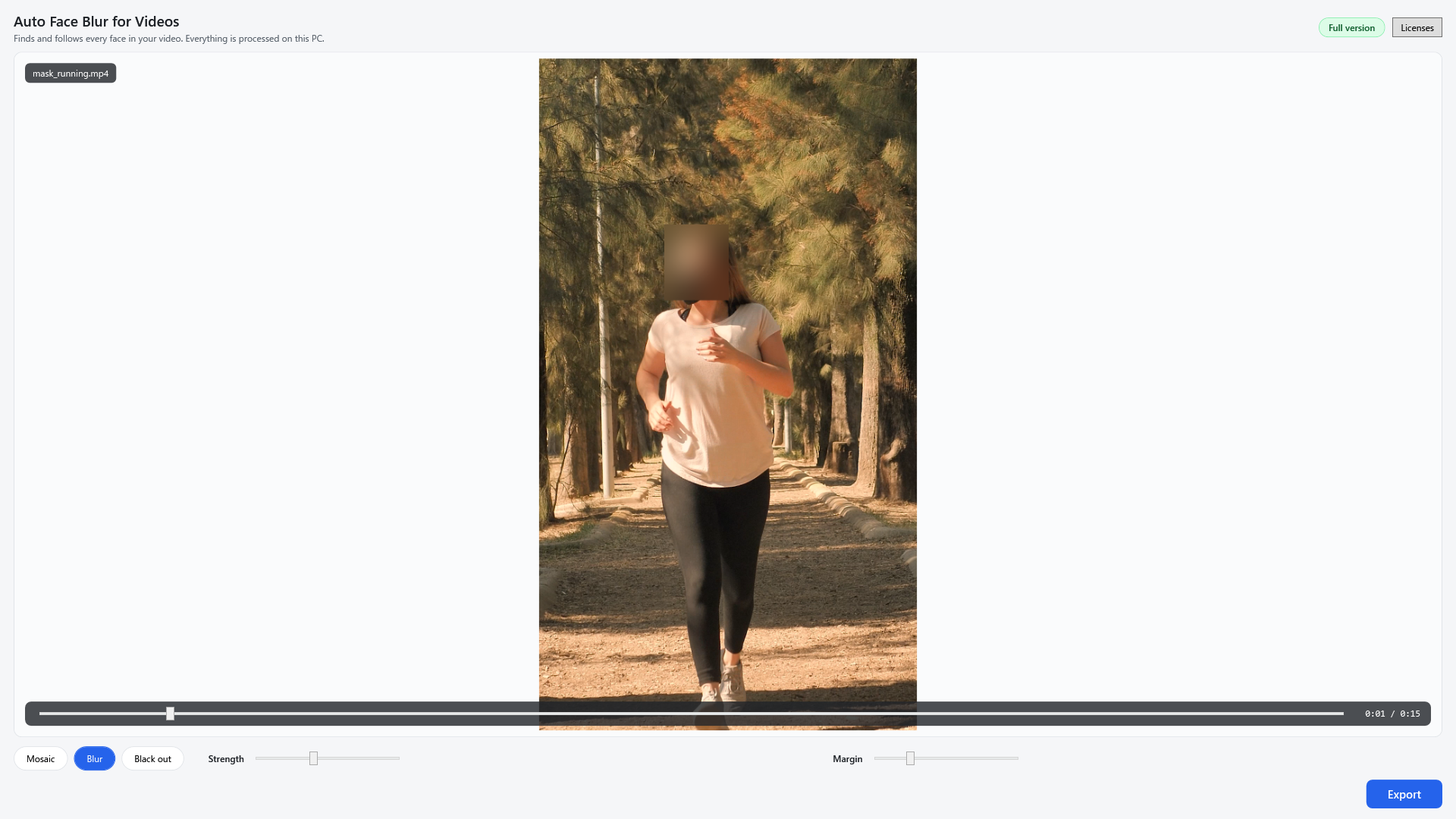
AI detects the faces in frame automatically and keeps tracking them as people move. You never have to click on a face to select it.
- Handles several people in frame at once
- Copes with people crossing or entering the frame
- Works with vertical phone videos
-
Point 02
Blur, mosaic, or black out
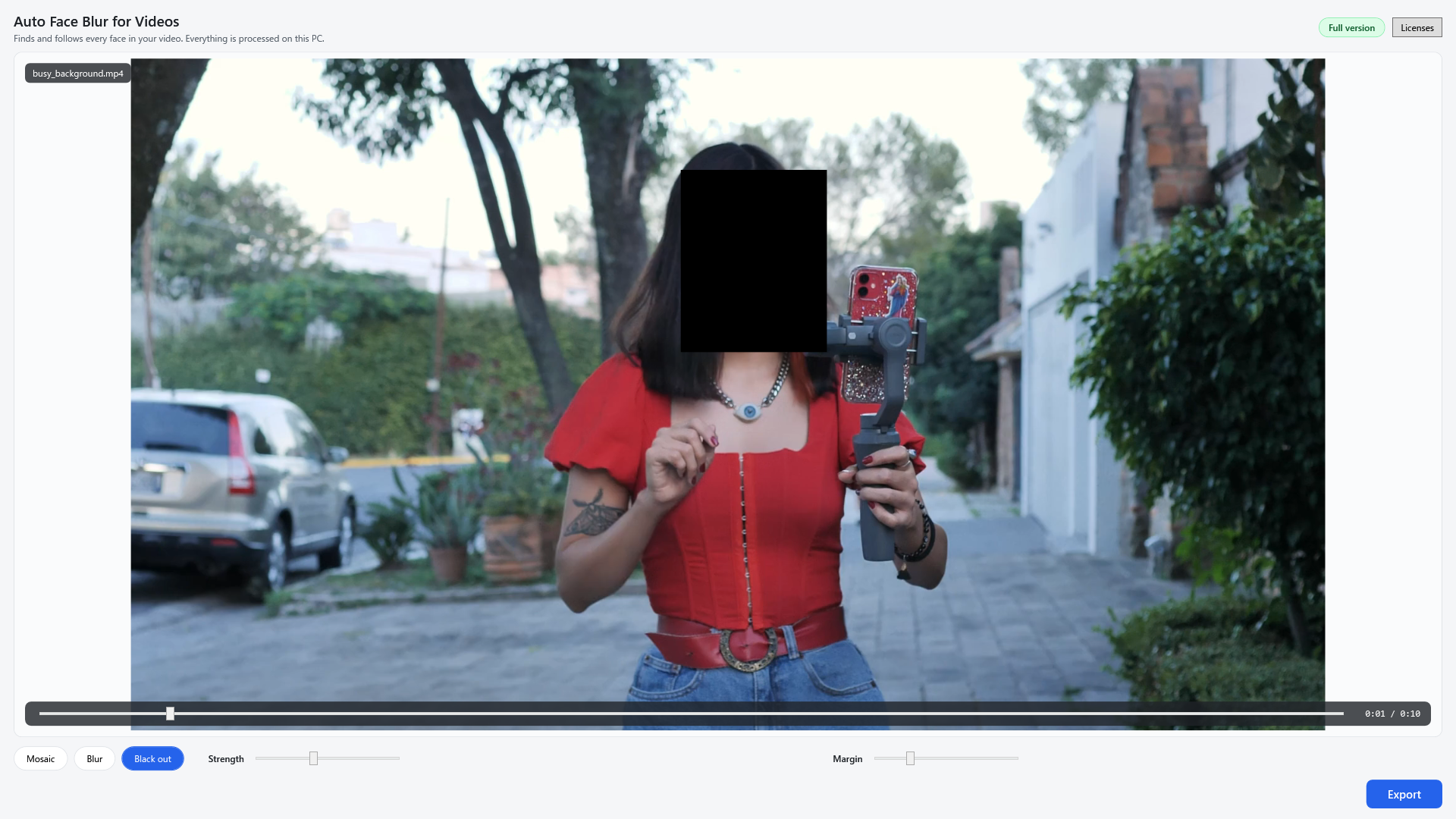
Choose the effect that suits your purpose and set its strength. You can preview the whole video before you export.
- Three effects: blur, mosaic, black out
- Adjustable strength with a safe minimum
- Exports MP4 with the original audio
-
Point 03
Your video never leaves your PC
Face detection and export both run on your PC. Uploading a video to the cloud in order to hide the faces in it would defeat the purpose.
- Videos and face data are never sent
- Works offline
- Your original stays untouched; the result is saved as a new file
How it works
Three steps
Nothing complicated to set up.
-
01
Drag and drop a video
Drop a video into the window. AI finds the faces, and the preview shows them with the effect applied.
-
02
Pick an effect and strength
Choose blur, mosaic, or black out and set the strength. Use the preview to check that each face is covered.
-
03
Press Export
When processing finishes, an MP4 with the faces hidden is saved, with the original audio.
Pricing
One-time purchase, no subscription
The free version exports at full quality with no watermark. The only limit is length: you can export the first minute.
-
Free
Try it on your own videos
Free
- Export the first minute
- Full quality, no watermark
- Preview the whole video
-
Recommended
Full version (one-time)
Pay once
$9.99
- No length limit
- No monthly or yearly fee
- Buy once and keep using it
* Prices shown are for the United States. See Microsoft Store for pricing in your region.
Specs
Supported videos
- Opens
- .mp4 / .mov / .mkv / .avi / .wmv / .webm
- Exports
- MP4 (H.264 video), original audio carried over
- Effects
- Blur / mosaic / black out, adjustable strength
- Windows
- Windows 10 (version 1809 or later) / Windows 11, 64-bit
* Opening iPhone videos (HEVC) requires the "HEVC Video Extensions" from Microsoft Store. The app tells you if it is missing.
* A face may be missed when it is a silhouette in strong backlight, kept in profile and never turned toward the camera, turned completely away, or too small and distant to make out. Always check the exported video before you publish it.
FAQ
Frequently Asked Questions
Will it hide every face for certain?
Not always. It is built to find and follow as many faces as it can, but faces in strong backlight, kept in profile, turned completely away, or far in the distance may be missed. Always check the exported video before you publish it.
Do I need to select each face?
No. Open a video and AI finds the faces and follows them. Several people in frame at once are handled together.
What can I do for free?
Export the first minute of any video, at full quality with no watermark. You can preview the whole video for free too, so you can check on your own footage that every face is covered before you buy. Exporting videos longer than a minute in full requires the full version (in-app purchase, one-time).
Are my videos uploaded?
No. All processing, including face detection, happens locally on your PC. Your videos and face data are never sent anywhere. Only anonymous usage statistics are sent to help improve the app.
What happens to the audio?
The original audio is carried over into the exported MP4 as it is. The app does not alter voices.
My iPhone videos won't open
iPhone videos (HEVC) need the "HEVC Video Extensions" from Microsoft Store. If it is missing, the app shows you where to get it.
How strong should the effect be?
Choose a strength at which people can't be recognized. A setting that is too weak can leave people recognizable, so there is a safe minimum. You can check how it looks in the preview as you adjust.
Which versions of Windows are supported?
Windows 10 (version 1809 or later) and Windows 11, 64-bit.
Try it free
Try it on your own videos
Export the first minute free.
Check that the faces are covered before you buy.
Microsoft and Windows are trademarks of Microsoft Corporation. This app is independent and is not affiliated with Microsoft.